https://techwirepro.com/
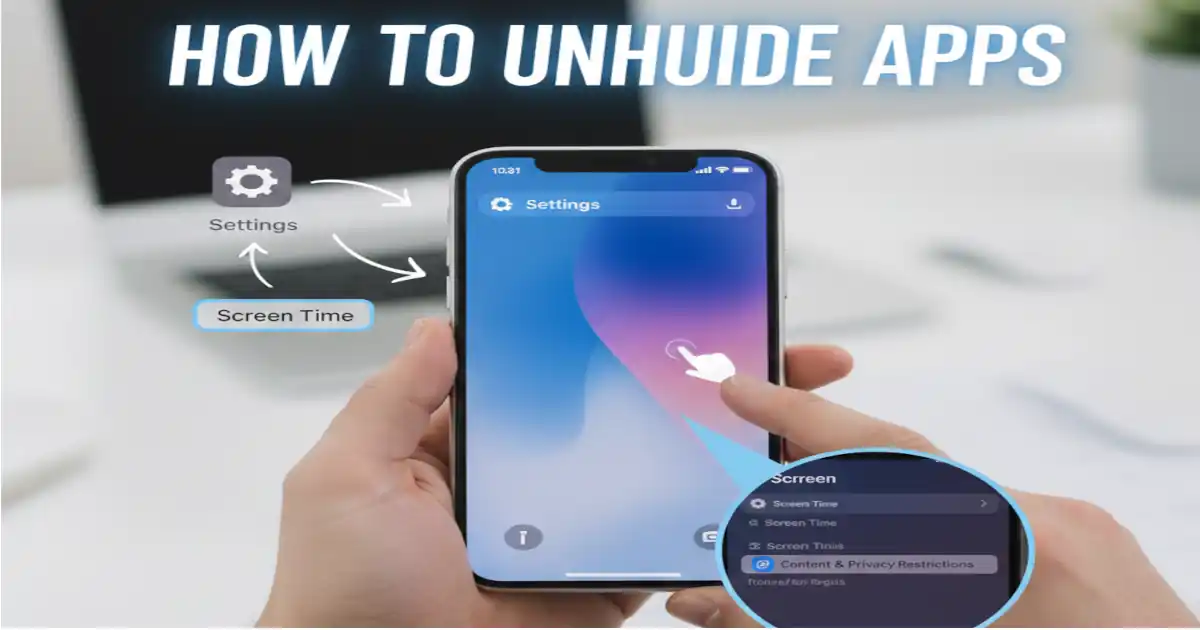
How to Unhide Apps on iPhone Home Screen?
Your iPhone contains dozens of apps that help you stay productive and connected. Sometimes these apps disappear from your home screen, leaving you confused and frustrated. You might have accidentally hidden them or removed them during a cleanup session.
Finding these missing apps doesn’t require technical expertise or special tools. Apple has built straightforward methods into iOS that let you restore hidden applications quickly. This guide will walk you through every method to bring your apps back.
Understanding Hidden Apps on iPhone
Apps can vanish from your iPhone home screen for several reasons. You might have moved them to your App Library accidentally. Sometimes iOS updates change where apps appear on your device. Other times you deliberately hide apps to reduce clutter.
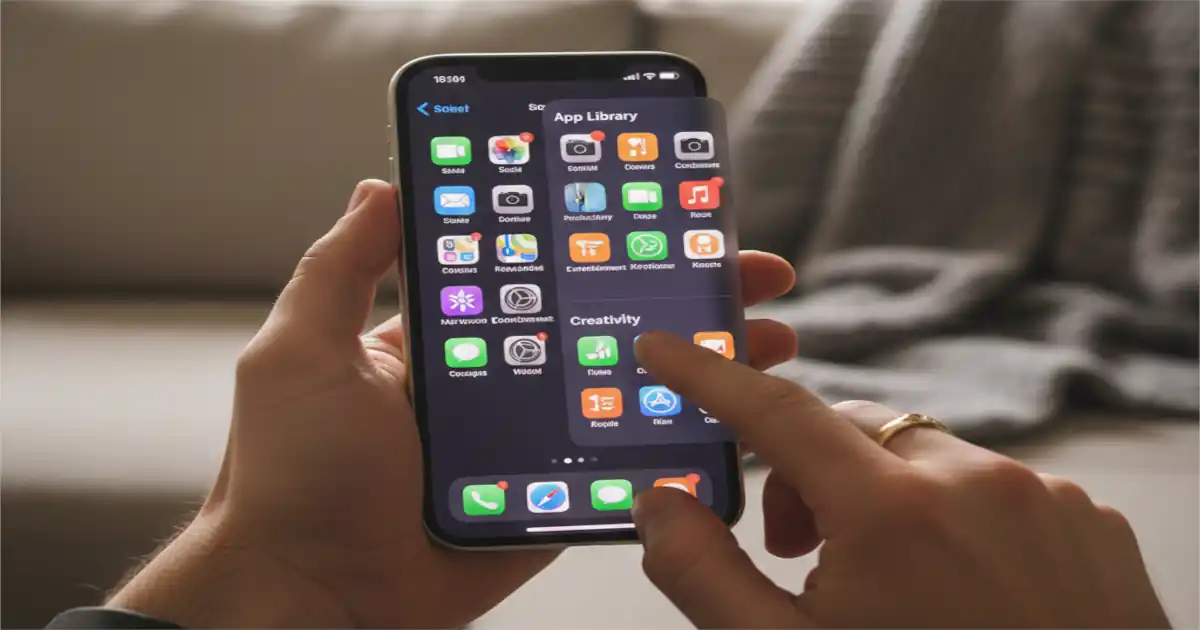
The App Library serves as a central location for all installed applications. This feature organizes your apps automatically into categories like Social, Productivity, and Entertainment. Even when apps disappear from your home screen, they remain accessible through this library.
Hidden apps still function normally on your device. They receive updates, send notifications, and run background processes as usual. The only difference is their visibility on your main screens.
Method 1: Search for the Missing App
The search function provides the fastest way to locate any app. Swipe down from the middle of your home screen to open Spotlight Search. Type the name of the missing app in the search bar.
Your iPhone displays matching results instantly. Tap the app icon to launch it immediately. This method works even when you don’t know which screen holds the app.
You can also drag the app icon from search results directly to your home screen. Press and hold the app icon until a menu appears. Select “Add to Home Screen” from the options displayed.
Method 2: Access the App Library
The App Library sits beyond your last home screen page. Swipe left repeatedly until you reach this organized view of all apps. Your apps appear sorted into automatic categories for easy browsing.
Scroll through different category folders to find your missing app. Tap any category to see all apps within that group. The recently added section shows your newest installations at the top.
Long press any app icon in the App Library to reveal quick actions. Choose “Add to Home Screen” to restore it to your main pages. The app will appear on the first available space on your screens.
Method 3: Check App Library Categories
Apple’s App Library uses intelligent categorization to group similar apps together. Social networking apps cluster in one folder while utilities gather in another. This organization helps you locate apps based on their function.
Common categories include Creativity, Entertainment, Finance, Health & Fitness, Information & Reading, Productivity, Shopping, Social, Travel, and Utilities. Each category displays up to four prominent apps with overflow in a grid view.
Tap the search field at the top of App Library to see an alphabetical list. This complete directory shows every installed app on your device. Scroll through the list or use the alphabet sidebar for faster navigation.
Method 4: Restore Apps from Hidden Purchases
Sometimes you completely remove apps from your device instead of just hiding them. The App Store keeps a record of every app you’ve downloaded. Access this history to reinstall any deleted application.
Open the App Store and tap your profile icon in the top right corner. Select “Purchased” from the menu that appears. This section displays your entire download history organized chronologically.
You can filter the list by tapping “My Purchases” or “Family Purchases” at the top. Find the app you want to restore and tap the download cloud icon. The app reinstalls to your device and appears on your home screen.
Method 5: Unhide Specific App Pages
iOS allows you to hide entire home screen pages along with their apps. These pages still exist but don’t appear when you swipe through screens. Restoring these pages brings back all contained apps at once.
Long press on any empty area of your home screen until apps start jiggling. Tap the small dots at the bottom of the screen representing your pages. This opens the page editing interface showing all available screens.
Pages with checkmarks remain visible while unchecked pages stay hidden. Tap the circle under any hidden page to reveal it again. Press “Done” to save your changes and exit editing mode.
Method 6: Reset Home Screen Layout
If you want to start fresh, resetting your home screen layout restores everything to default. This method brings back all apps to their original positions. Custom folders and arrangements will be lost during this process.
Navigate to Settings and select “General” from the options list. Scroll down and tap “Transfer or Reset iPhone” near the bottom. Choose “Reset” followed by “Reset Home Screen Layout” from the menu.
Your iPhone asks for confirmation before proceeding with the reset. Tap “Reset Home Screen” to confirm your decision. The device reorganizes all apps to their factory default arrangement immediately.
Method 7: Use Siri to Find Apps
Siri offers another quick solution for locating and launching hidden apps. Activate Siri by saying “Hey Siri” or pressing the side button. Ask Siri to open the specific app you’re looking for by name.
Siri launches the app directly without needing to know its location. You can then add the app back to your home screen manually. This method works particularly well when you remember the app name but not its category.
Managing Home Screen and App Library Settings
iOS provides settings to control how apps appear across your screens. These preferences determine whether new downloads automatically appear on your home screen. Adjusting these settings prevents apps from hiding unexpectedly in the future.
Open Settings and scroll to “Home Screen” options. You’ll find choices for where newly downloaded apps should appear. Select “Add to Home Screen” to ensure all new apps show up immediately.
The alternative “App Library Only” option sends new downloads directly to the library. This keeps your home screens clean but requires manual addition of apps. Choose the option that matches your organizational preferences.
Preventing Apps from Hiding Again
Organization helps maintain visibility of important apps on your device. Create folders for related applications to group them logically. Name folders clearly so you remember their contents at a glance.
Keep your most-used apps on the first home screen for instant access. Place less frequently used apps on additional pages or in the App Library. This strategy reduces accidental hiding while maintaining clean screens.
Regularly review your home screen layout and make adjustments as needed. Remove apps you no longer use to free up space. Update folder contents when you install new apps with similar functions.
Troubleshooting Common Issues
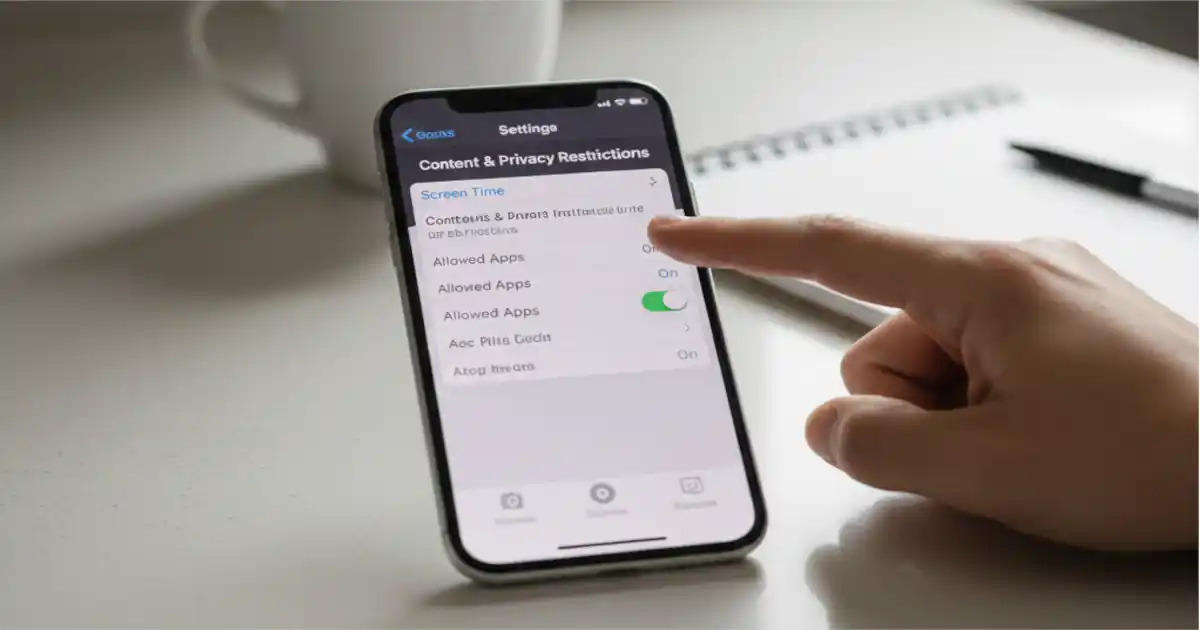
Sometimes apps remain hidden despite following standard unhiding procedures. Restrictions or Screen Time settings might prevent certain apps from appearing. Check these settings to ensure no parental controls are blocking app visibility.
Go to Settings and select “Screen Time” to review any active restrictions. Tap “Content & Privacy Restrictions” to see what limitations are enabled. Disable “iTunes & App Store Purchases” restrictions if they’re preventing app management.
If an app still doesn’t appear after trying all methods, it might be deleted completely. Visit the App Store to search for and reinstall the application. Check your purchase history to confirm whether the app was previously installed.
Understanding App Offloading
iOS includes an app offloading feature that removes apps but keeps their data. Offloaded apps appear grayed out with a cloud icon on your home screen. This feature saves storage space while preserving your information and settings.
Tap any offloaded app icon to automatically download and reinstall it. Your data and preferences restore immediately once the download completes. This happens seamlessly without requiring additional configuration steps.
You can disable automatic offloading in Settings under “App Store” preferences. Toggle off “Offload Unused Apps” to prevent iOS from removing apps automatically. This ensures all apps remain fully installed on your device regardless of usage patterns.
Using Focus Modes and App Hiding
Focus modes can hide specific apps temporarily based on your current activity. When you enable a Focus, certain apps may not appear on your home screen. These apps return automatically when you disable or switch Focus modes.
Check your active Focus settings if apps seem to disappear during certain times. Go to Settings and select “Focus” to review your configurations. Tap any active Focus to see which apps are hidden or allowed.
Customize each Focus mode to show the apps you need for that activity. This feature helps reduce distractions while keeping important apps accessible. Apps hidden by Focus modes aren’t permanently removed from your screens.
Organizing Apps After Unhiding
Once you know how to unhide apps on iPhone home screen, organize them effectively for better productivity. Create a system that makes sense for your daily workflow and habits. Consider grouping apps by function, usage frequency, or personal preference.
Place communication apps together in one folder for quick access. Group productivity tools separately from entertainment applications. This separation helps you focus on tasks without distraction from other apps.
Use widget stacks on your home screen to display information from multiple apps. Widgets provide at-a-glance updates without opening full applications. They complement your app organization strategy while maximizing screen real estate.
Additional Tips for App Management
Regular maintenance keeps your iPhone organized and efficient over time. Delete apps you haven’t used in months to free up storage space. Review your installed apps quarterly to identify unused or forgotten applications.
Update apps regularly to ensure they function properly with current iOS versions. Outdated apps sometimes behave unexpectedly or disappear from certain menus. The App Store notifies you when updates become available for installation.
Back up your iPhone regularly to preserve your home screen layout and settings. iCloud backups include your app arrangement and folder organization. This backup restores everything if you switch devices or need to reset.
Frequently Asked Questions(FAQs)
Why did my apps disappear from my iPhone home screen?
Apps disappear due to accidental hiding, moving them to App Library, hiding home screen pages, or enabling Focus modes. iOS updates sometimes reorganize apps automatically. App offloading can also make apps appear grayed out when storage runs low.
Can I recover permanently deleted apps on iPhone?
Yes, you can reinstall any previously downloaded app through the App Store. Open the App Store, tap your profile icon, and select Purchased. Find the deleted app in your history and tap the download icon to reinstall it completely.
Do hidden apps still receive notifications on iPhone?
Hidden apps continue functioning normally and send notifications as configured. They still run background processes, update automatically, and appear in Notification Center. Hiding only affects their visibility on home screens, not their operational capabilities.
How do I stop apps from automatically hiding on my iPhone?
Navigate to Settings, select Home Screen, and choose “Add to Home Screen” for new downloads. Disable app offloading under Settings, App Store, and toggle off “Offload Unused Apps.” Review Focus mode settings to prevent temporary app hiding.
What’s the difference between App Library and home screen?
The home screen displays apps you choose to keep visible for quick access. App Library automatically organizes all installed apps into categories beyond your last screen page. Apps can exist in App Library without appearing on home screens.
Will resetting my home screen layout delete any apps?
No, resetting the layout only reorganizes apps to their default positions. All installed apps remain on your device with their data intact. Custom folders disappear, but you can recreate them after the reset completes successfully.
Conclusion
Learning how to unhide apps on iPhone home screen gives you complete control over your device organization. Multiple methods exist to restore missing apps depending on how they disappeared initially. The search function, App Library access, and Settings adjustments all provide effective solutions.
Your iPhone offers flexibility in managing app visibility and arrangement across screens. Take advantage of these features to create an organizational system that matches your needs. Regular maintenance prevents apps from hiding unexpectedly while keeping your device running smoothly.
Master these techniques to ensure important apps remain accessible whenever you need them. Customize your home screen layout to reflect your priorities and workflow preferences. Your iPhone becomes more useful when you understand how to manage its interface effectively.
READ ALSO: Fishing Family ThunderontheGulf: A Complete Guide to Gulf Coast Adventures
About the Author